
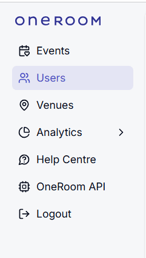
User management is available in the Users section of the Admin console.
Adding a user
-
Go to Users
-
Select New User from the top right hand side of the page
-
Choose the user role and, if applicable, the venue access
-
Venue Admins manage streaming for one or more venues. They can create and edit services and add or remove users
-
Event Organizers have view-only access to specific services. They can manage invitees and send invitations, but cannot create services or manage users
-
-
Click Create
The user is added immediately and will receive an email with a link to set up their password and access OneRoom.
Removing a user
-
Go to Users
-
Select the user from the list
-
Choose Delete and save
This removes the user’s access to your venue.
Things to be aware of
-
You can only add or remove users for venues you manage
-
You will only see venues you personally have access to when editing a user
-
Removing a user removes their access to your venue